Tutorial: generate on-brand images and video
Marketing assets usually mean a design tool, a brand file, and an afternoon. In Mastery HQ they’re one sentence - and they come out in your brand’s colors, type, and mood, because the Brand Kit rides along with every request.
1. Ask for a reel
Section titled “1. Ask for a reel”In the command bar:
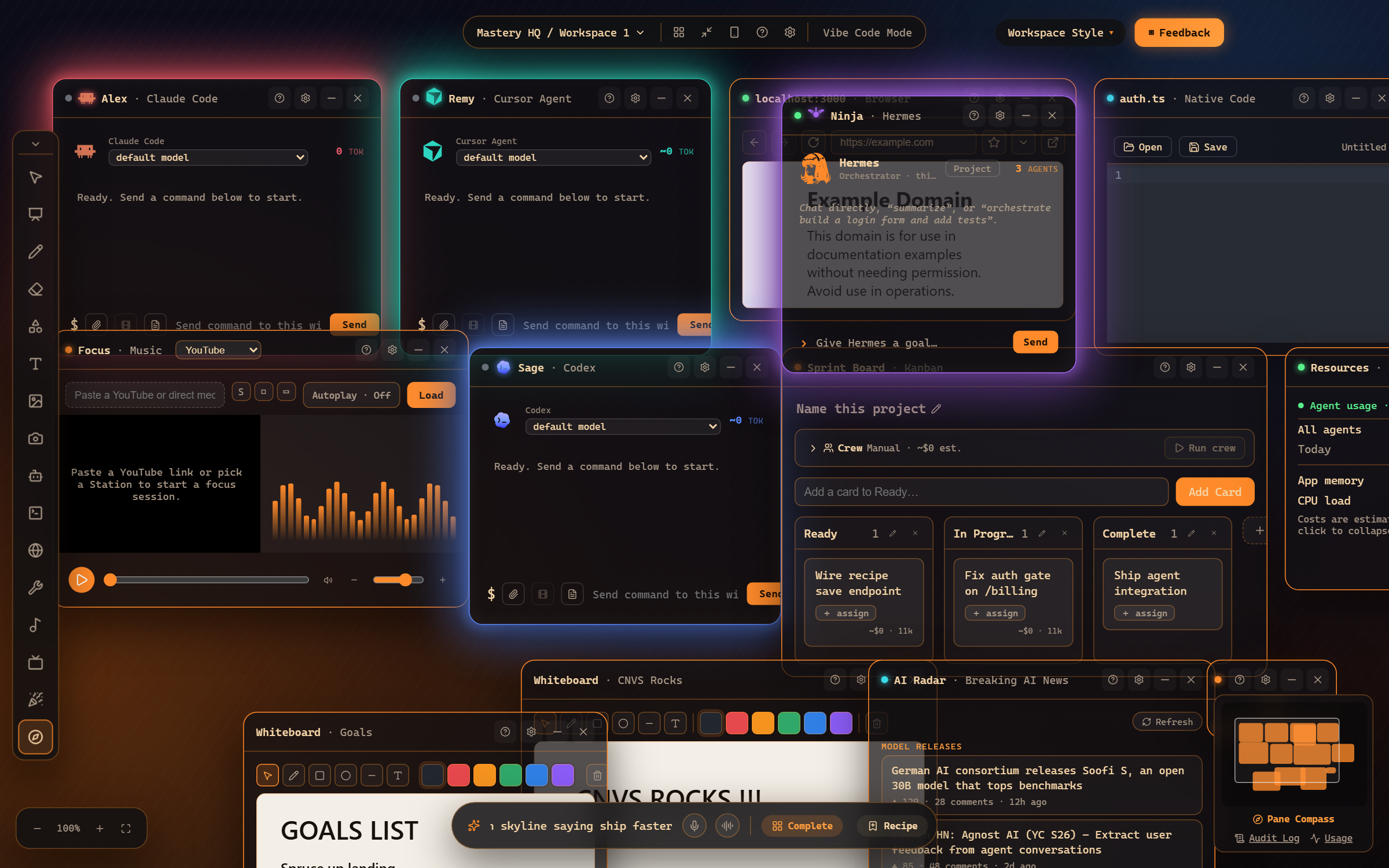
“make a brand reel of a neon skyline saying ship faster” - the b-roll comes from a generation model; the title overlay is rendered locally with your exact brand fonts and colors. Pricier renders show a confirm card with the cost before anything is spent.
2. Or images, in named shapes
Section titled “2. Or images, in named shapes”The same grammar makes stills: “generate a hero image of the leaderboard”, “make an og card about the launch”, “social square for the new theme”. Template names (hero, og, social, logo) pick the right composition and aspect for the job.
3. Everything lands in Assets
Section titled “3. Everything lands in Assets”Generated media (and your screenshots) live in the Assets gallery:
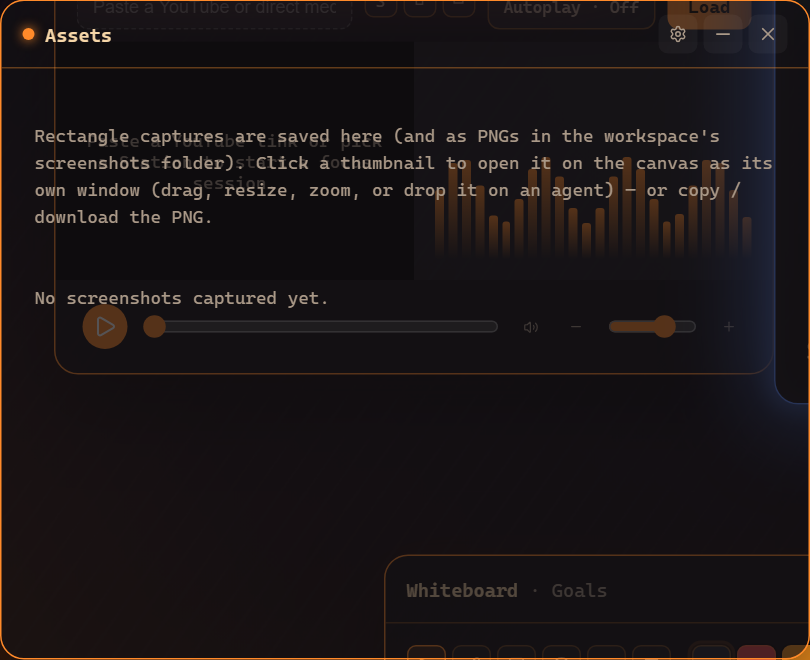
Click anything to open it on the canvas as its own window - then Copy it to the clipboard, Download it, or Send it to an agent (“use this as the hero on the landing page”).
4. Charts count too
Section titled “4. Charts count too”“chart how OAuth works” or “draw a diagram of our deploy pipeline” - explanatory graphics land on the canvas the same way, drawn by a model.
Where to go next
Section titled “Where to go next”- Brand images on demand - templates, budgets, models.
- Brand videos - bumpers, reels, and the hybrid render.
- Charts on demand.
Frequently asked questions
Where do generated images and videos land?
On the canvas as their own windows, and in the Assets gallery - from there you can copy, download, or drop them onto an agent.
Does it cost money every time?
Generation uses your configured media models with budgets you set - pricier renders ask for confirmation first, so there are no surprise bills.